


Connect HubSpot CRM with BOMA Marketing Platform
Does BOMA integrate with Hubspot?
Yes, BOMA integrates with HubSpot via Zapier. The integration automatically syncs contacts from BOMA lead forms to your HubSpot CRM in real-time. Setup takes approximately 10 minutes and works with free Zapier accounts. You’ll need a BOMA account, HubSpot account, and Zapier account to begin.
The HubSpot-BOMA integration automatically synchronises contacts from BOMA lead capture forms directly into your HubSpot CRM. This eliminates manual data entry, ensures no potential client is overlooked, and creates a seamless workflow between your marketing automation and client relationship management systems.
What This Integration Does
When someone completes a BOMA lead capture form (newsletter sign-ups, content downloads, webinar registrations), their contact details are instantly added to your HubSpot CRM with customisable tags and segmentation. This allows accounting firms to:
- Capture leads automatically: Every form submission flows directly to HubSpot
- Maintain data accuracy: Single source of truth with automatic synchronisation
- Segment intelligently: Tag leads based on the form they completed
- Nurture systematically: Trigger HubSpot workflows based on BOMA form submissions
- Save time: Eliminate manual CSV exports and imports
Who This Integration Is For
This integration is designed for accounting and bookkeeping firms who use:
- BOMA for content marketing, email campaigns, and lead generation
- HubSpot CRM for client relationship management and sales workflows
- Zapier for connecting cloud applications (free and paid plans supported)
WHY CONNECT HUBSPOT WITH BOMA
For Accounting Firms Using Both Platforms:
- Eliminate double data entry: Contacts flow automatically from marketing to CRM
- Faster lead response: Sales team sees new leads instantly in HubSpot
- Better attribution: Track which BOMA campaigns generate HubSpot opportunities
- Unified client view: Marketing engagement + sales conversations in one system
- Scalable growth: Handle 10 or 1,000 leads/month without additional admin work
How to Set Up HubSpot-BOMA Integration
Requirements
Before starting, ensure you have:
- An active BOMA account with API access
- A HubSpot account (free or paid)
- A Zapier account (works with free plan)
- Your BOMA API key (found in Settings > Integrations)
Integrating HubSpot with BOMA through Zapier allows accountants to seamlessly sync contacts from BOMA lead capture forms to their HubSpot account. This integration ensures that leads who complete a lead capture form is automatically synced to your HubSpot CRM, eliminating the need for manual data entry and ensuring that no potential client is overlooked. By connecting BOMA with HubSpot, you can enhance your lead management, streamline your marketing efforts, and focus on building strong relationships with your clients.
Follow the steps below to enable this integration.
Step-by-Step Guide
First you will need to create a Lead Form in BOMA.
Navigate to the Lead Form page in the BOMA menu and click on New lead form.
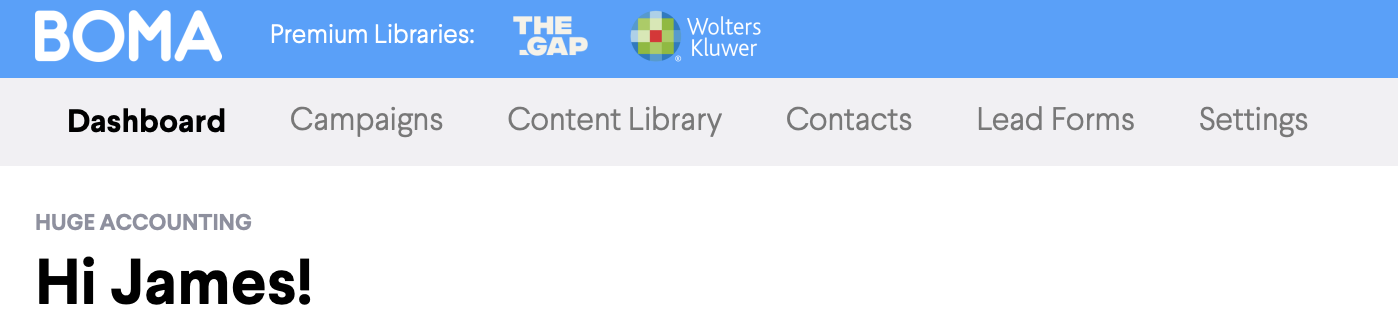
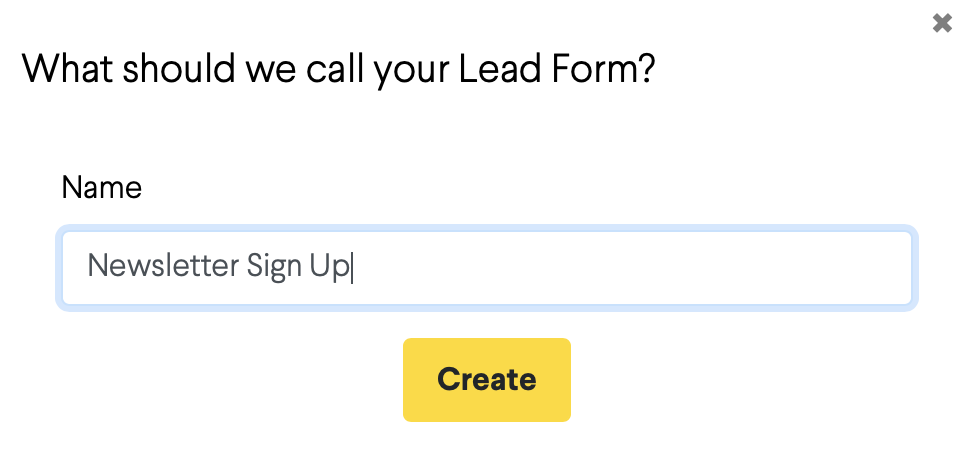
Give the lead form a name e.g. Newsletter Sign Up and click on Create.
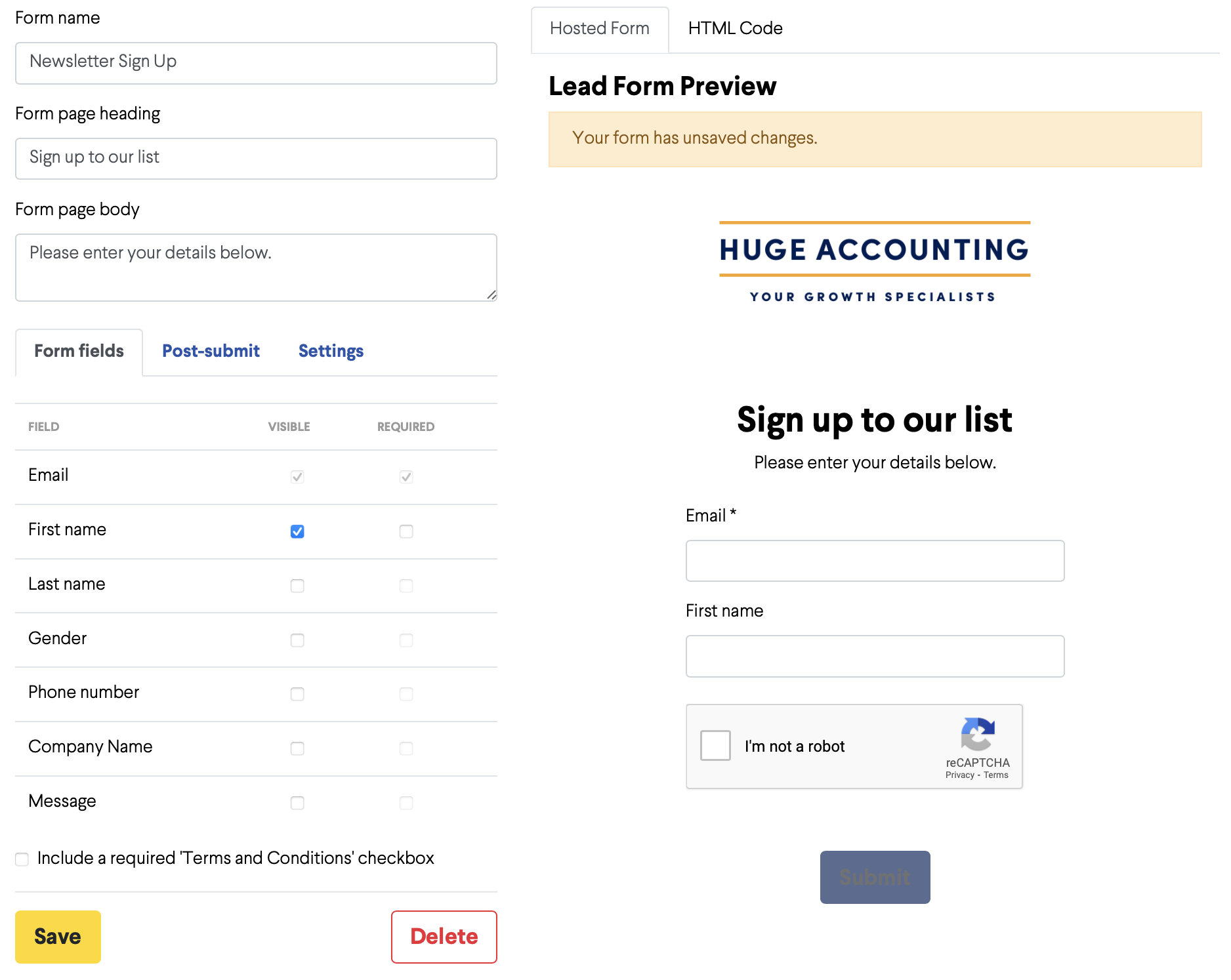
Next fill our the Form page heading and Form page body and the Form Fields you want to capture e.g. First Name.
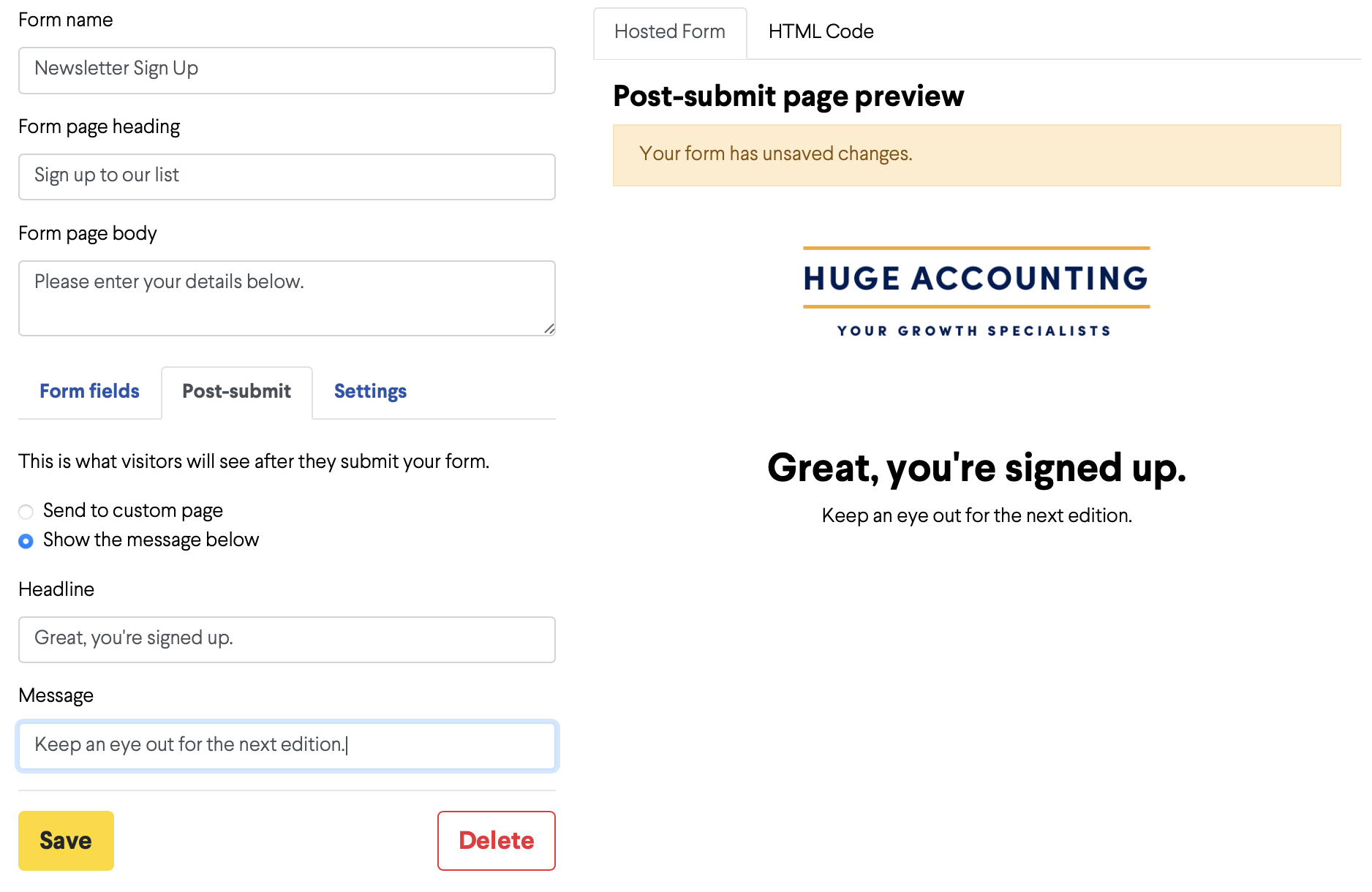
Then specify the Headline and Message you want people who complete the form to be shown.
Finally, tick the check box labeled Send to Zapier.
Assign a tag to the people who complete the form e.g. newsletter sign up.
Add the website domain where the form will be hosted.
Then click save.
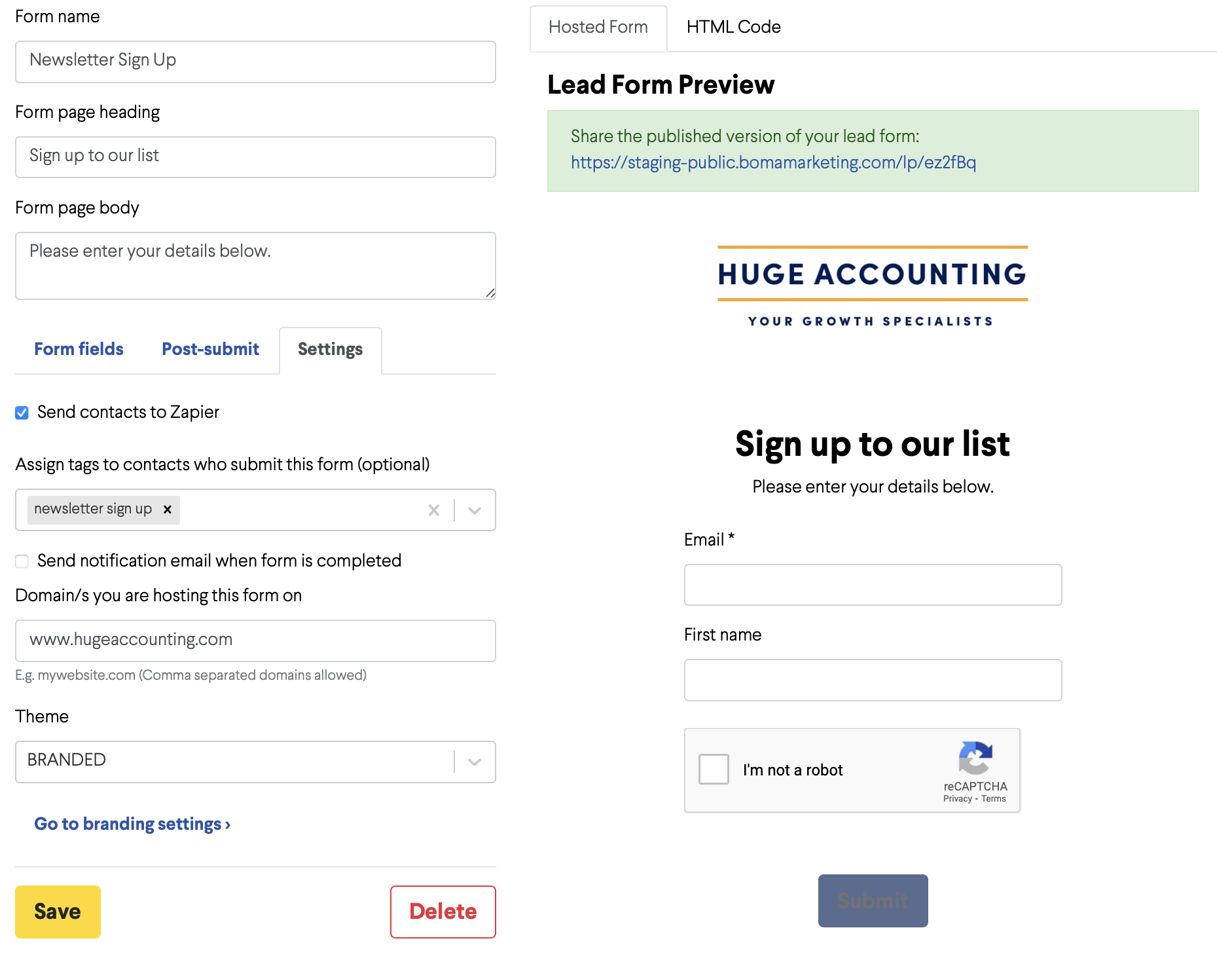
Now once a lead form has been filled out, the contact will be sent to Hubspot.
Next, you will need to go to www.zapier.com and log in to your account.
To create a Zap click on Create in the left-hand menu.

Click on Trigger.

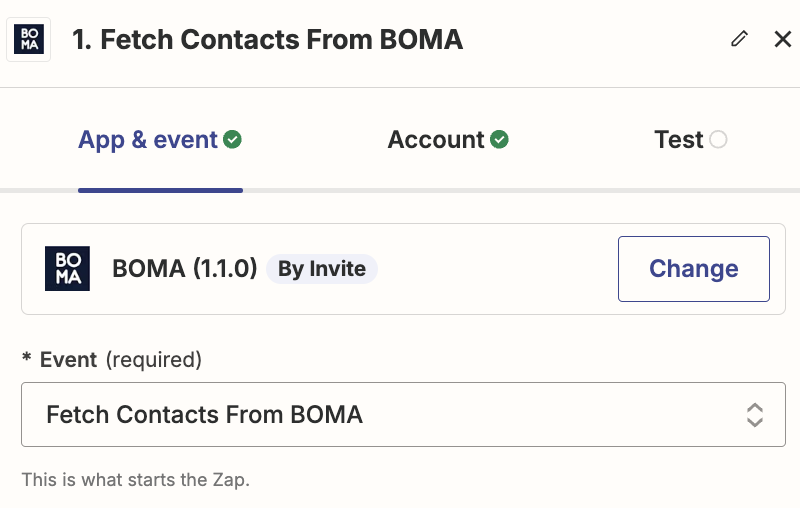
Find the App you want to use, in this case BOMA 1.1.0.
If you can’t find BOMA, connect manually via this support link.
Or click on a link from BOMA to add it, and then you will be able to find it in the Apps.
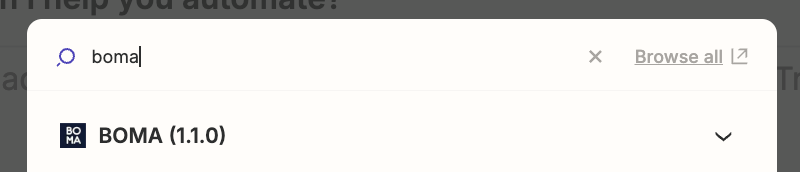
Then, you will need to link your BOMA account to the Zap.
Click on the Account and choose Sign in
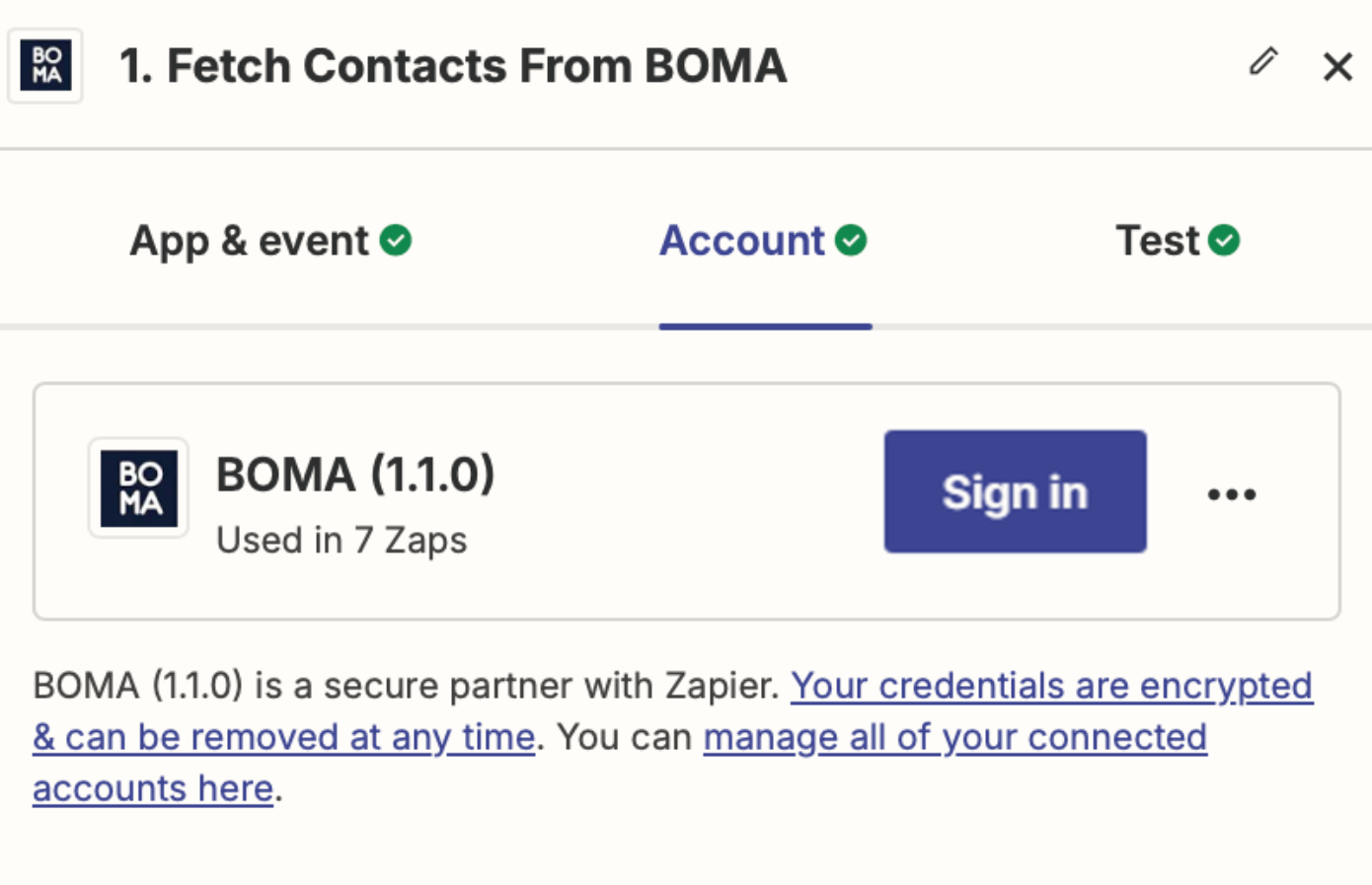
A popup will appear.
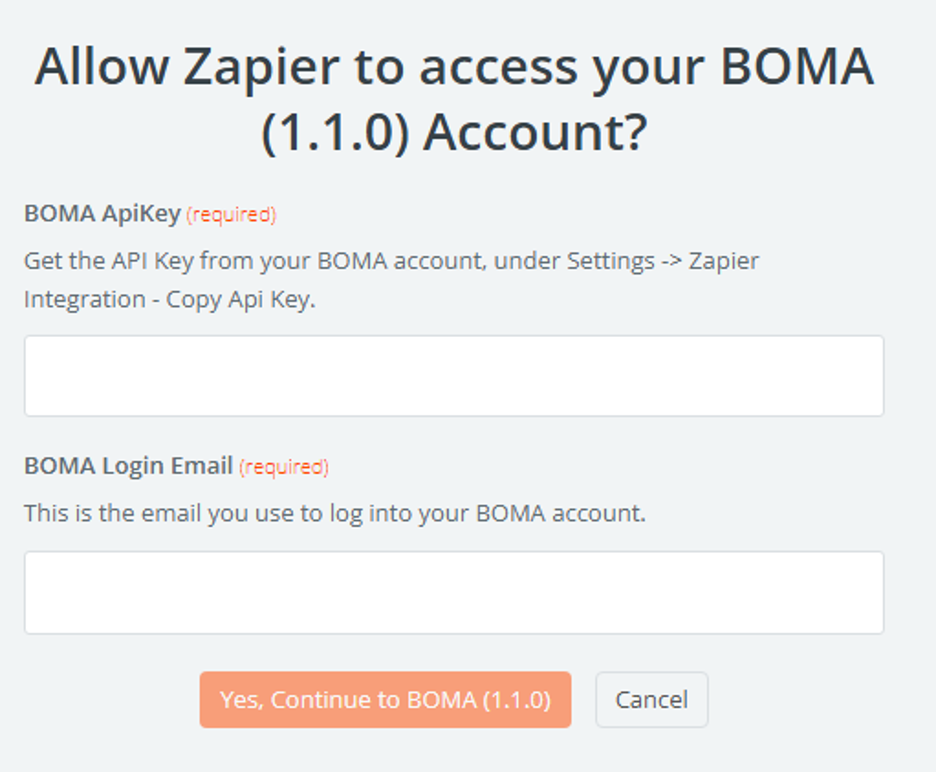
Enter the API key and the email you use to login to BOMA and press the Yes continue button.
A connection will open the Zap with the Action field ready to edit.
Select Fetch Contacts From BOMA.
 `
`
Once you have connected the account, click on test.
Next, you will need to connect your Hubspot account.
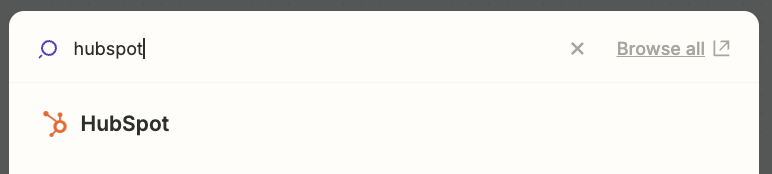
Select Hubspot in the search pop up that appears.
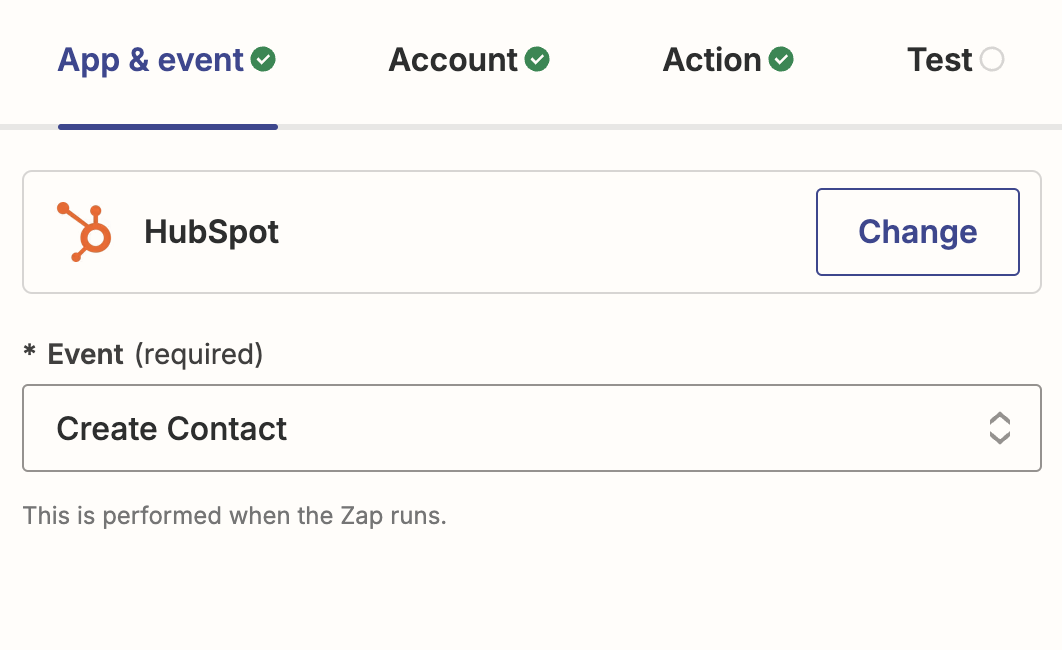
Choose the event by selecting Create Contact.
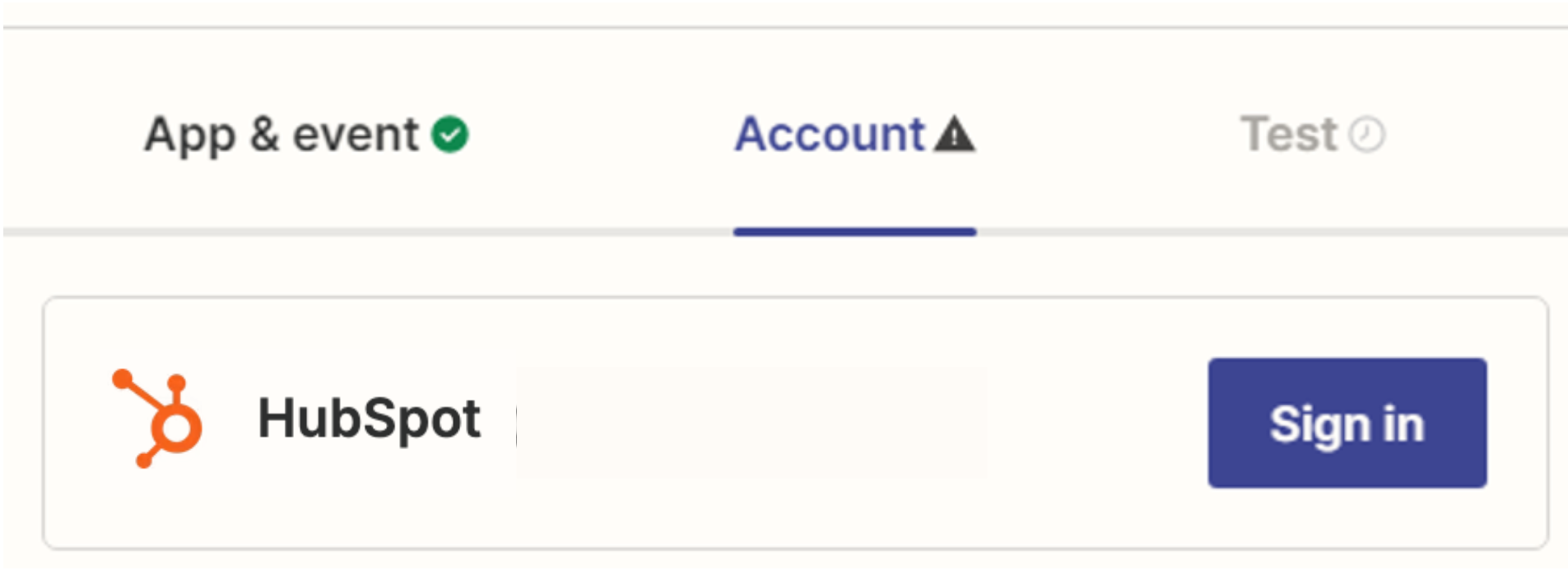
Now, Sign in to your Hubspot account.
You will then need to select the different information that you would like to be transferred to Hubspot from your BOMA account.
You will need to at least add the email of the contact, but we also recommend you add the First and Last name fields (so you can identify who the contact is).
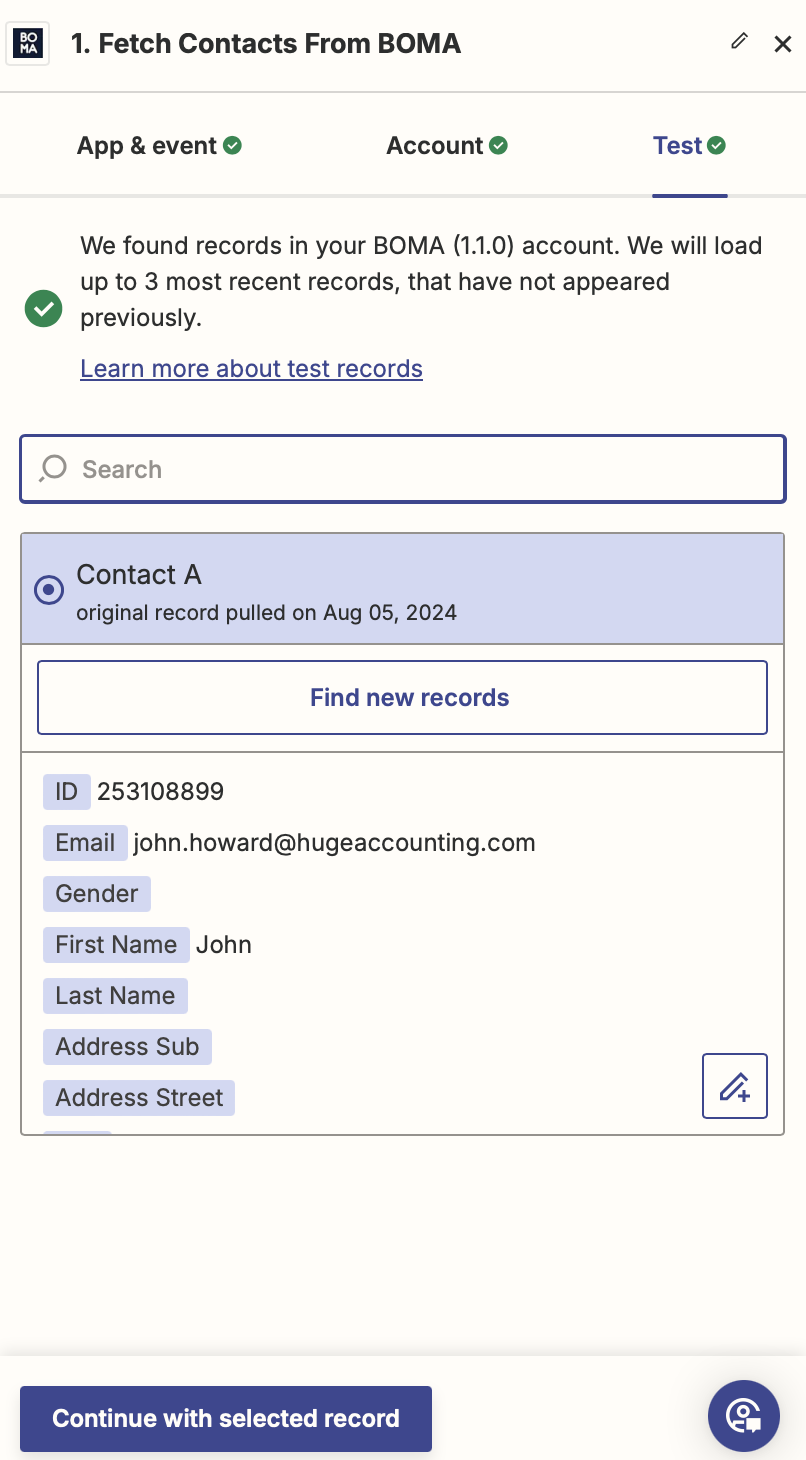
It will appear on the right hand side.
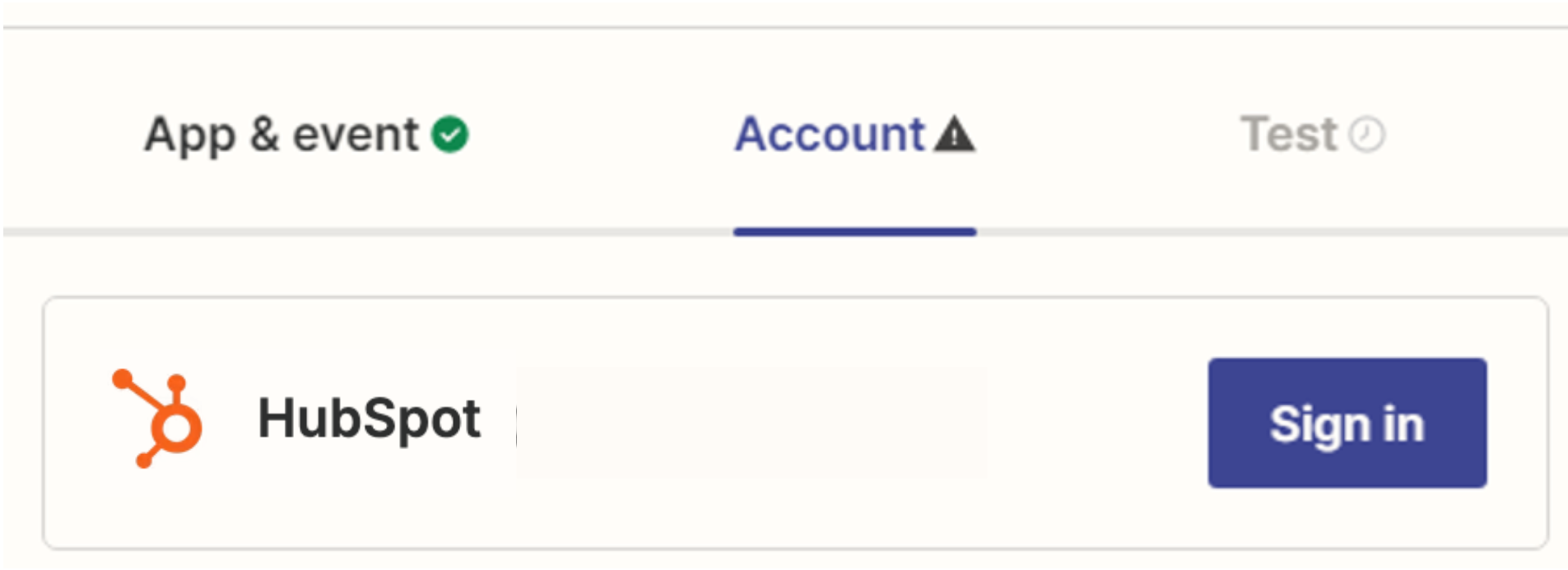
Click on Account.
You will need to connect to your Hubspot account. Click Sign In.
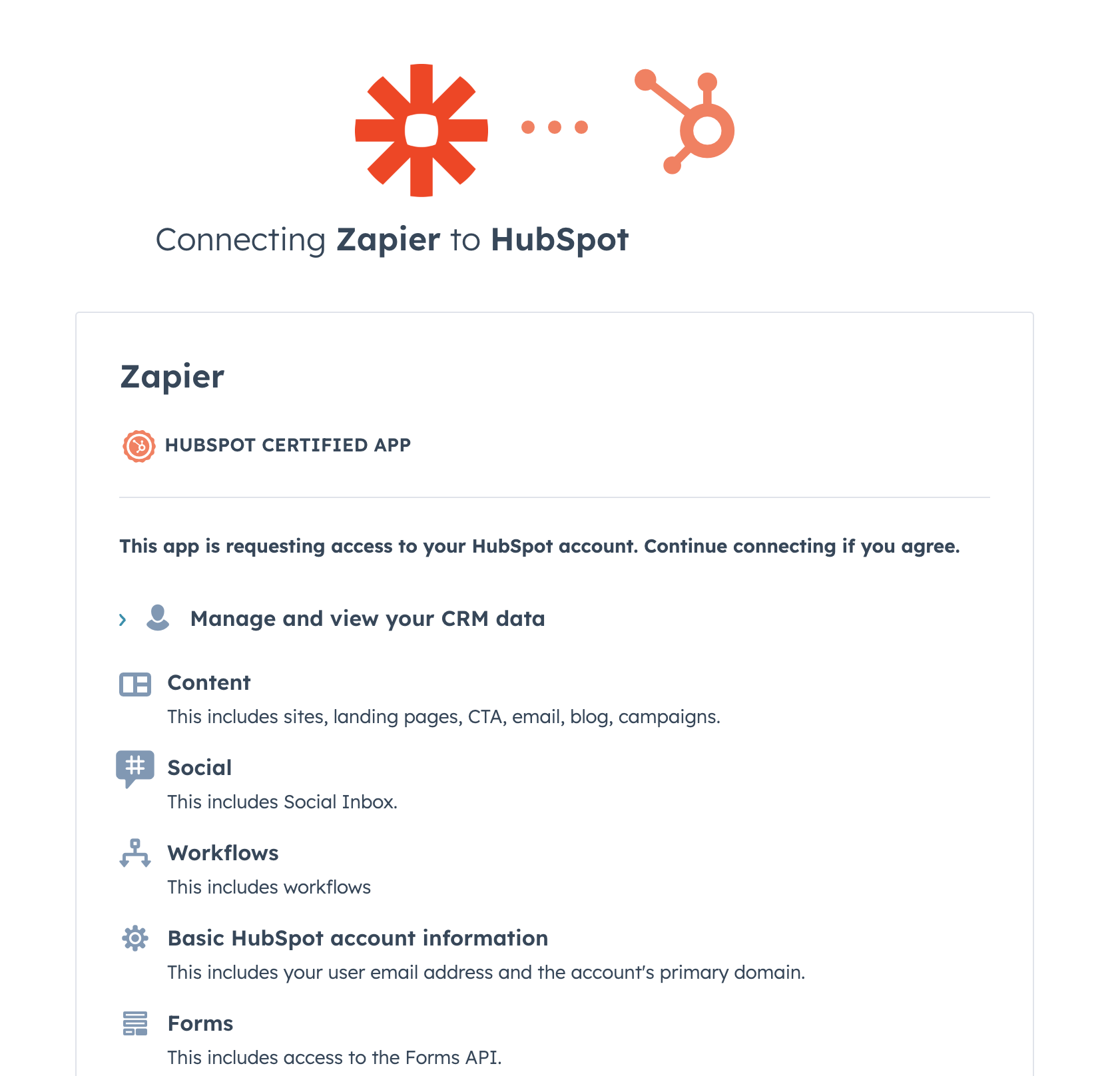
Click on the Orange Connect app button to connect Zapier to your Hubspot account.
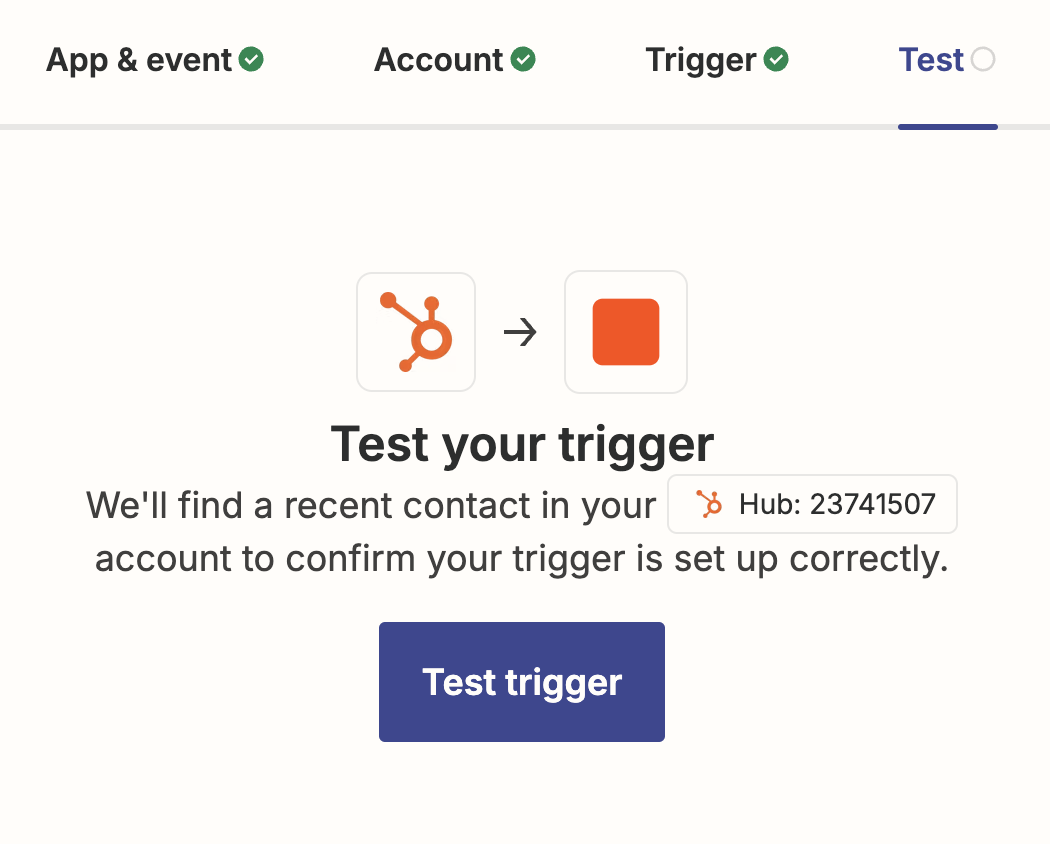
Finally, test the trigger – the Zap will find a recent new Lead Form contact in BOMA online to confirm the trigger is set up correctly.
Click on the Test trigger button.

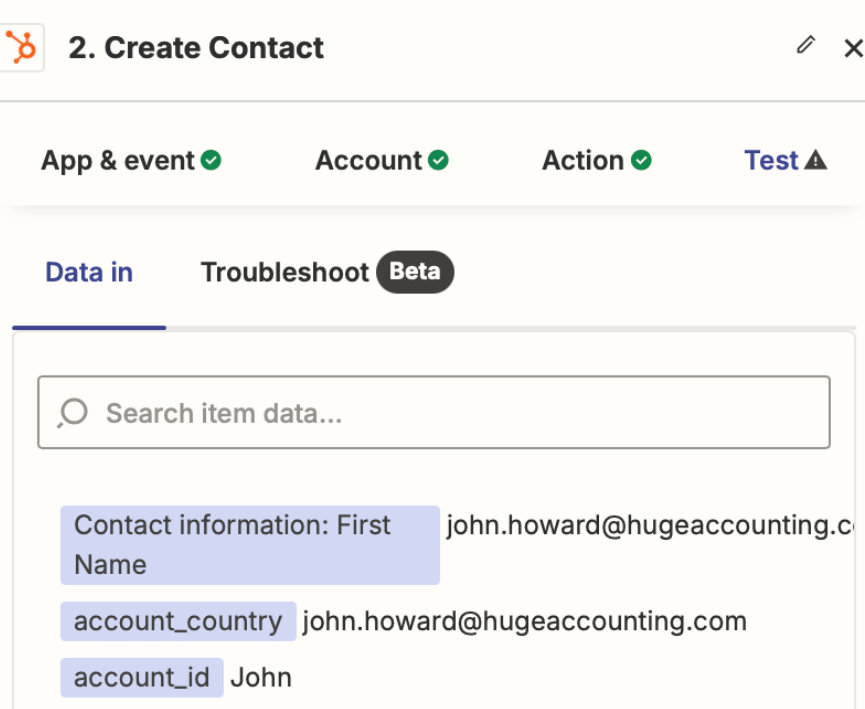
Click the blue Publish button to save your zap or Retest step if necessary.

Congratulations! You’ve successfully connected BOMA Lead Forms to Hubspot CRM using Zapier.
FREQUENTLY ASKED QUESTIONS
Does this integration work in real-time?
Yes. When a lead completes a BOMA form, they’re sent to HubSpot within seconds via Zapier. There may be a brief delay (typically under 1 minute) depending on your Zapier plan.
Can I sync historical BOMA contacts to HubSpot?
The integration only syncs new form submissions moving forward. To import existing BOMA contacts, export them as a CSV from BOMA and import to HubSpot manually as a one-time setup.
Which HubSpot properties can I map from BOMA?
You can map any standard BOMA form fields (First Name, Last Name, Email, Phone, Company) to corresponding HubSpot properties. Custom fields require manual mapping in Zapier.
Does this use my Zapier task quota?
Yes. Each form submission counts as one Zapier task. On Zapier’s free plan (100 tasks/month), you can sync 100 leads monthly. For higher volumes, upgrade your Zapier plan.
Can I add leads to specific HubSpot lists or workflows?
Yes. In the Zapier action step, you can specify which HubSpot list to add contacts to. You can also use HubSpot’s workflow automation to trigger actions when contacts with specific BOMA tags are created.
What happens if a contact already exists in HubSpot?
Zapier will update the existing contact record rather than creating a duplicate, based on email address matching. Existing data is preserved unless you specifically map fields to overwrite.
Do I need a paid BOMA plan for this integration?
The Zapier integration is available on all BOMA plans. Check your specific plan features or contact BOMA support to confirm API access.
Can I use this without Zapier?
Currently, Zapier is the only supported integration method between BOMA and HubSpot. BOMA’s API and HubSpot’s API could be connected via custom development, but this requires technical expertise.
RELATED INTEGRATIONS FOR ACCOUNTING FIRMS
- Karbon + BOMA Integration – Sync practice management data. Learn more.
- QuickBooks + BOMA Integration – Connect accounting software. Learn more.
- Xero + BOMA Integration – Link cloud accounting platform
- WordPress + BOMA Integration – Publish to your website automatically. Learn more.